Logseq DB is pretty stable now. I’ve been using it as my main driver for several months, but it is still listed as “beta” software for a reason. There are still bugs that need to be squashed before it is stable enough for a general audience. By using it and reporting bugs, you can help speed up development. But it is important to know how to troubleshoot issues and report bugs. This guide will help you do just that.
Validate Current Graph
One of the most useful commands is “Validate Current Graph”
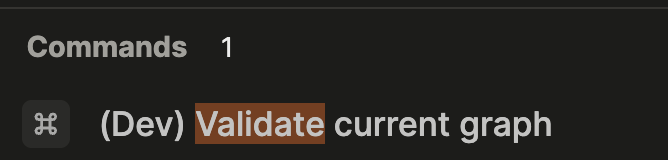
You access this by enabling “Developer mode” in the settings, in the “Advanced” tab, and then searching for the command in the cmd-k palette.
Ask For Help
If you aren’t ready to report a bug yet (see below) you can ask here or on the Logseq Discord server, but be sure to ask in the correct channel. Questions about Logseq DB should go in the “db-chat” channel, while requests for new features go in the “db-feedback” channel. When asking for help make sure to give basic information, such as:
- Make sure to let people know you are using the DB version and not the MD version!
- What platform you are using? (Desktop, Web, iOS, etc.)
- What OS you are running? (Windows, Linux, macOS)
- What version of Logseq you are running? (See below for how to look that up)
- What are the steps to reproduce the problem.
Report Bugs
Logseq DB bugs get reported here, not in the main repository issue tab.
-
Try to see if you can reproduce the bug. Create a test graph and see if you can trigger the bug there. Bugs that the team know how to reproduce are the ones most likely to be fixed.
-
Learn how to report which “build” of the app you are using. Always document which platform (macOS, Windows, web version, desktop app, iOS app, etc.) you are using, as well as the build number. On the web and desktop apps you can get the build number by clicking on the 0.11.0 in the “settings” screen. On iOS you can click on the ". . . " menu in the top left and copy the “Revision” number.
-
Give the team as much data as possible. If you can export your DB file and share that, it is best. If, for privacy reasons, you can’t do that, then choose this option from the export menu:
“Export debug transit file: Exports to a .transit file to send to us for debugging. Any sensitive data will be removed in the exported file.”
-
The above is often enough, but sometimes the team will also need to look at the console logs. To provide these on the desktop app choose “toggle developer tools” from the “view” menu. Select the “console” tab and ctl-click there. Choose “copy console” and paste this into a text editor - then share this file. Check it for sensitive data first. To make this information more exact, first clear the console logs, then reproduce the error, and then copy them.